Custom Branding with Cover Images and Emoji Icons | Process Street

Your brand is critical to building a great culture with your team and a deep relationship with your customers. Custom branding helps people recognize the right process before they read a single instruction. In Process Street, cover images and emoji icons give workflows a distinct visual identity, while rich emails carry a consistent experience into customer and employee communications.
New employees, customers, and partners should always experience your brand in the best possible light. The goal is practical, not decorative. A clear visual system reduces hesitation, separates similar workflows, and reinforces which team or business owns the work. With a few repeatable choices, your workflow library becomes easier to scan and your outbound messages become easier to trust.
Why custom branding matters
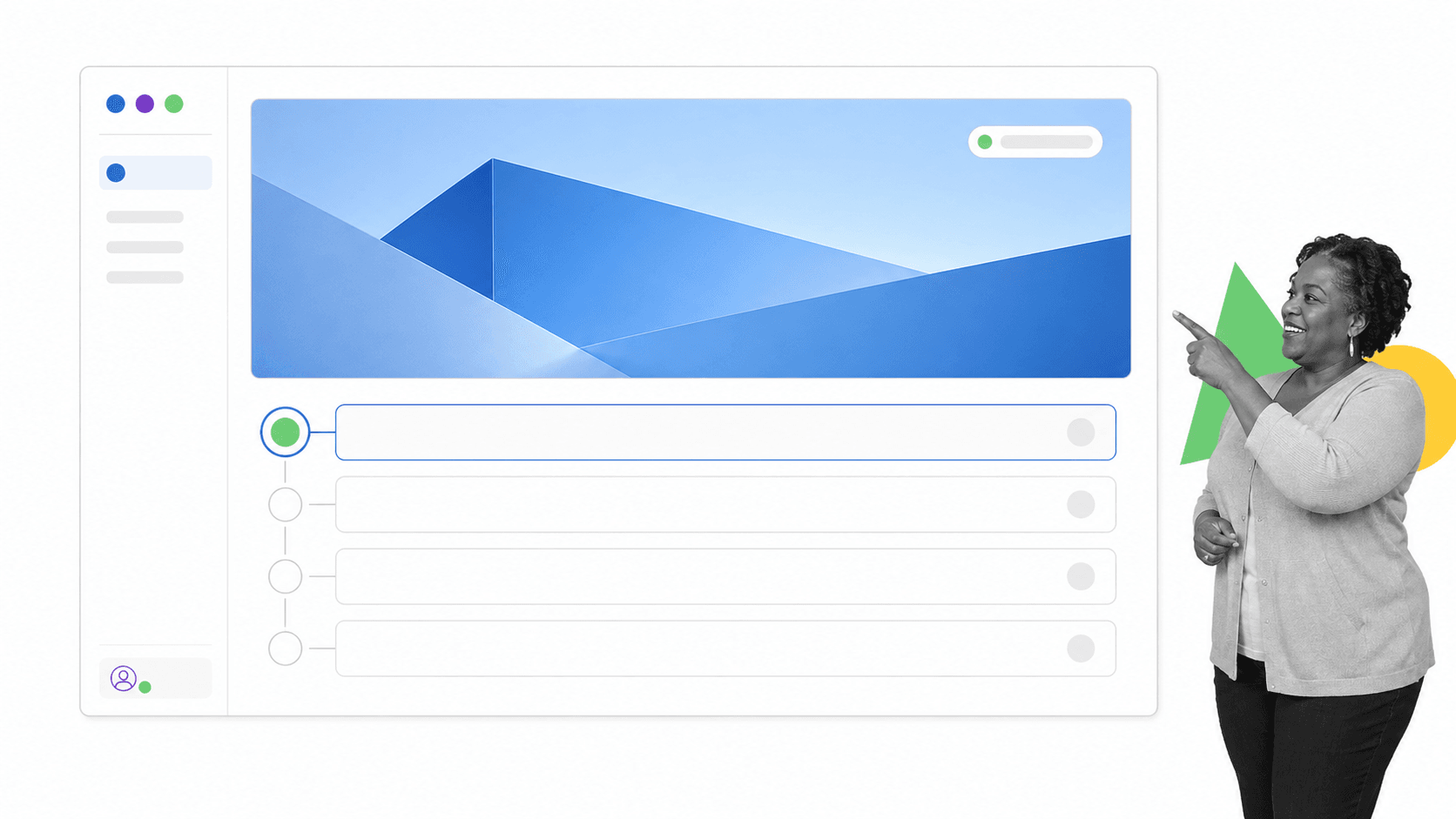
Brand consistency is most useful when it guides action. A familiar image, icon, or email style tells a person that they are in the right place and dealing with the right organization. That recognition matters for internal teams choosing among similar workflows and for external recipients deciding whether a message is legitimate.
Process Street separates account-level identity from workflow-level customization. Account branding establishes the organization behind the experience. Account admins control the account logo, while a workflow creator can add custom cover images and icons to help distinguish one process from another. Treat those layers as a system: keep the organization recognizable, then give each important workflow a visual cue tied to its purpose.
Add recognizable cover images

A cover image sets the visual context for a workflow. Choose an image that relates to the work, remains clear at different screen sizes, and does not depend on tiny text. The custom branding guide explains how to add cover images, logos, and emojis in the relevant settings.
A cover image is an easy and powerful way to help people quickly understand who is driving a particular process, so they are more likely to engage with it. Add familiar corporate branding to workflows that include external participants. For an internal workflow, help colleagues across your organization identify the specific initiative, department, or team driving the work.
Use a small approved image set rather than selecting a new style for every workflow. For example, one visual family can identify onboarding, another can identify audits, and another can identify customer operations. Repetition creates familiarity across multiple channels. Too many unrelated styles make the library harder to scan.
Unlike rich media content in specific tasks, the cover image provides a shared visual cue for workflow participants. Before publishing, check that the image is readable in its final crop, has enough contrast, and does not expose confidential information. Decorative details should support the workflow name, not compete with it.
Choose useful emoji icons

In addition to a cover image, you can add an emoji or custom icon to a workflow or page. The icon appears in tandem with the cover image and can contribute a little extra personality for workflow participants and page viewers. It is especially helpful when several items share similar names or belong to the same operating area.
Choose icons by meaning rather than novelty. The association should be obvious to the people who use the workflow, and the same symbol should mean the same thing across the library. Avoid relying on color alone because color perception and display conditions vary.
You and your team also benefit behind the scenes. When you search in Process Street or scroll through your library, the emoji or icon appears next to the name of the workflow or page, helping you find the right asset faster. An icon does not replace a precise workflow name. It supports recognition after the name and purpose are clear.
Organize the workflow library
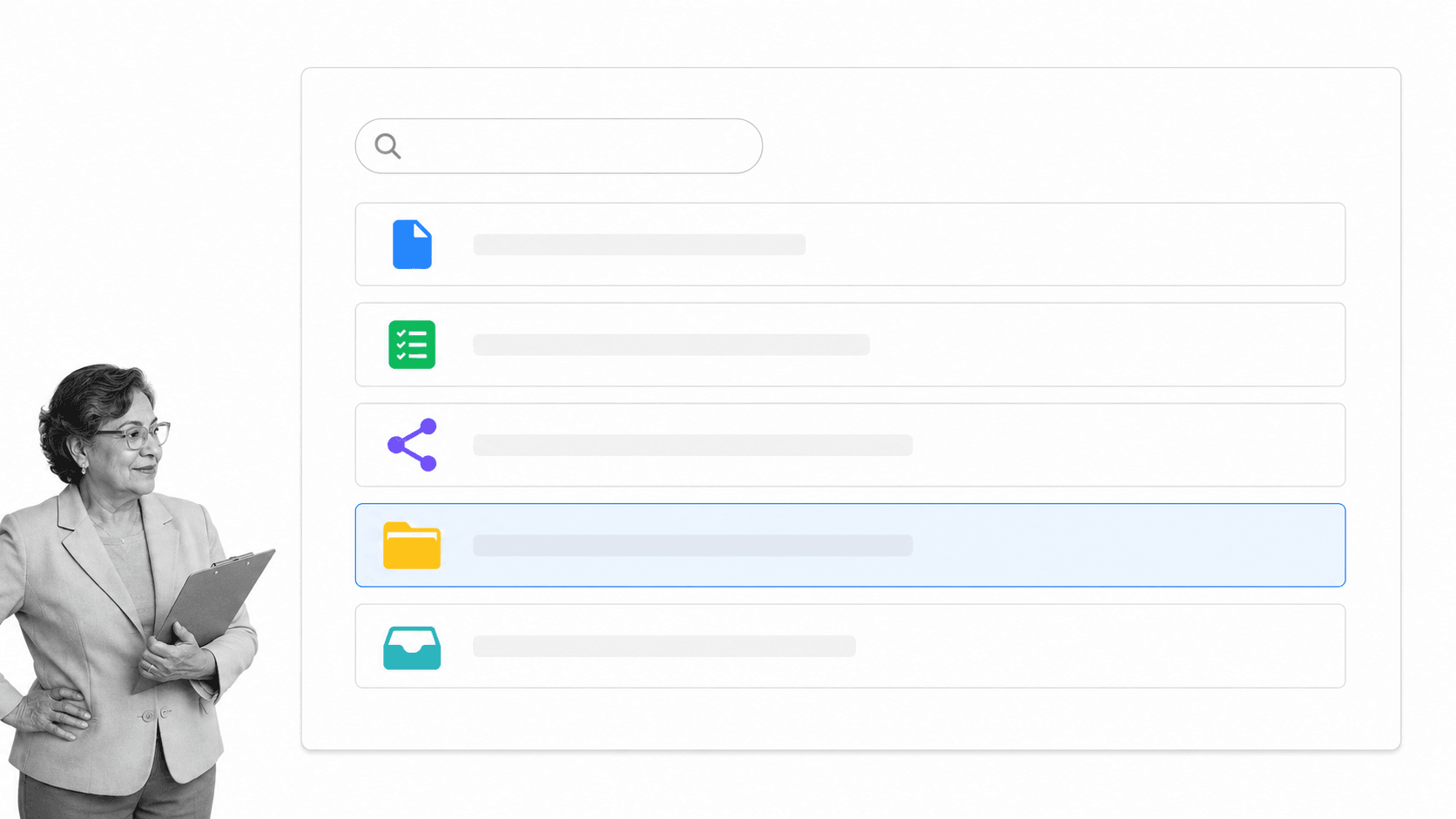
Custom branding works best when it follows a simple taxonomy. Start with the operating areas people already understand, such as finance, people operations, security, or customer support. Assign each area a restrained visual pattern, then use specific icons to distinguish the workflows inside it.
Document the pattern so new workflows do not drift. A lightweight customizable workflow software standard can define approved image sources, icon meanings, naming rules, owners, and review dates. That turns visual consistency into an operating practice instead of a one-time cleanup.
Review the library periodically. Merge duplicates, retire obsolete workflows, and correct icons that no longer match the work. The strongest visual system reflects the current operating model.
Send consistent branded emails
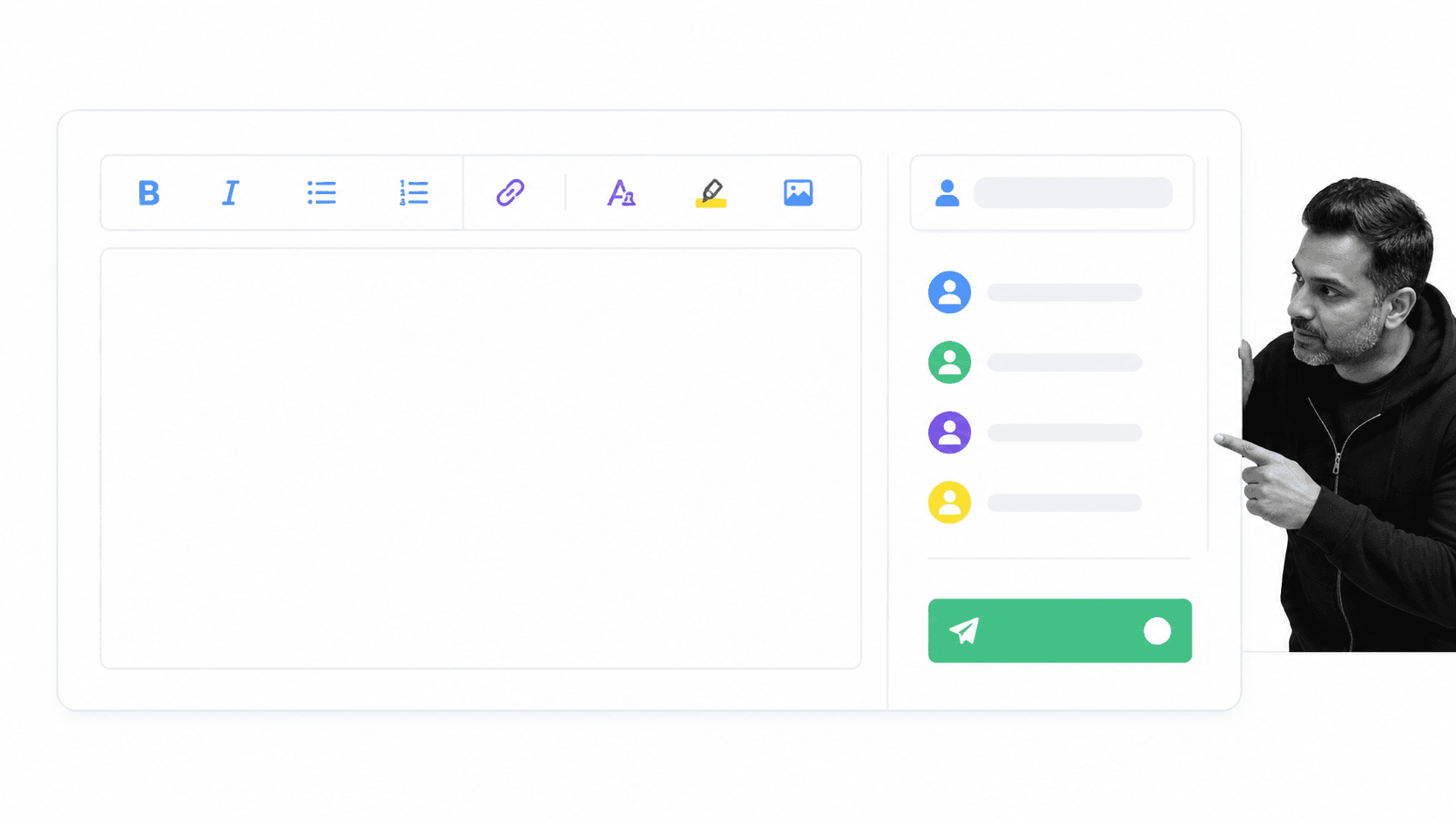
Workflow emails extend the process beyond the people working inside it. Many teams use the email widget to speed up sending emails at the right moments in their processes. Rich content emails offer more control than plain text only. A consistent sender identity, clear subject, useful formatting, and predictable call to action help recipients understand what happened and what they need to do next.
The default rich text toolbar supports familiar formatting such as font color and hyperlinks. Use headings, short paragraphs, links, and variables only when they improve comprehension. If your team needs more control, the HTML option can more closely represent your brand. Follow the guidance for creating an email with HTML and test the result in the email clients your recipients use.
You do not need to be an HTML expert to customize the look and feel of an email. Free drag-and-drop email builders can create the code, which you can copy and paste directly into the widget. Keep the source manageable and test it before sending.
Workflow participants can send emails directly via Process Street instead of opening a draft in their own email client. That send experience can save time and clicks for the team and other stakeholders while keeping the communication connected to the workflow.
Keep operational messages direct. State why the recipient is receiving the email, identify the requested action, include the relevant deadline or owner, and provide a trustworthy link. Avoid visual clutter that makes a routine approval or update feel like a marketing campaign.
Turn brand standards into governed operations

Brand rules become reliable when they have owners, approvals, and evidence. A documented standard can define who may change account branding, which visual assets are approved, how new workflow icons are selected, and when email templates need review.
Process Street is a Compliance Operations Platform. It is one product with Docs and Ops capability areas plus built-in AI. Teams use Docs to create and govern policies, procedures, and operational knowledge. They use Ops to run repeatable workflows, assign work, collect evidence, route approvals, manage exceptions, and track completion. Built-in AI helps teams classify information, draft and summarize content, find relevant knowledge, and support execution inside those controls.
That structure makes branding maintainable. A request to change an approved asset can move through review, an owner can document the decision, and teams can update affected workflows without losing accountability. The result is a visual system that stays useful as the organization grows.
Start by selecting one high-use workflow, applying a recognizable cover image and icon, and testing the experience with the people who use it. Then document the pattern and expand it across the workflows and emails where recognition matters most. Start a Process Street trial to build a consistent, governed workflow experience.